- The Rundown University
- Pages
- 🧠 Day 2: Stop re-explaining yourself to AI


Hey everyone,
Welcome to Day 2 of our 5-day Introduction to AI email course!
Yesterday, we covered the 6-step prompt formula — a prompting technique that instantly upgrades your AI conversations.
But here's something that used to drive me crazy:
Every time I started a new ChatGPT conversation, I had to explain who I am, what I do, how I like things formatted — basically training a new assistant from scratch every single time. It's exhausting, and it's why a lot of people feel like AI "doesn't get them."
Today we're fixing that permanently with Custom Projects.
Projects are AI workspaces where you can store context files that AI references automatically, set instructions for how you want it to behave, and have multiple conversations that all share the same foundation.
Think of it like having one assistant who already knows your job, your company, and exactly how you like things done — instead of hiring a new intern every morning.
Nate Grahek, AI University instructor, puts it simply: “You can move from 2x efficiency with basic chat to potentially 10x with properly configured projects.”

AI Foundations Course: Module 1
Set up your project in 3 quick steps
Step 1: In ChatGPT, click "Projects" in the left sidebar and name the project (e.g., "Weekly Reports" or "Client Proposals"). Then click “Create project”.

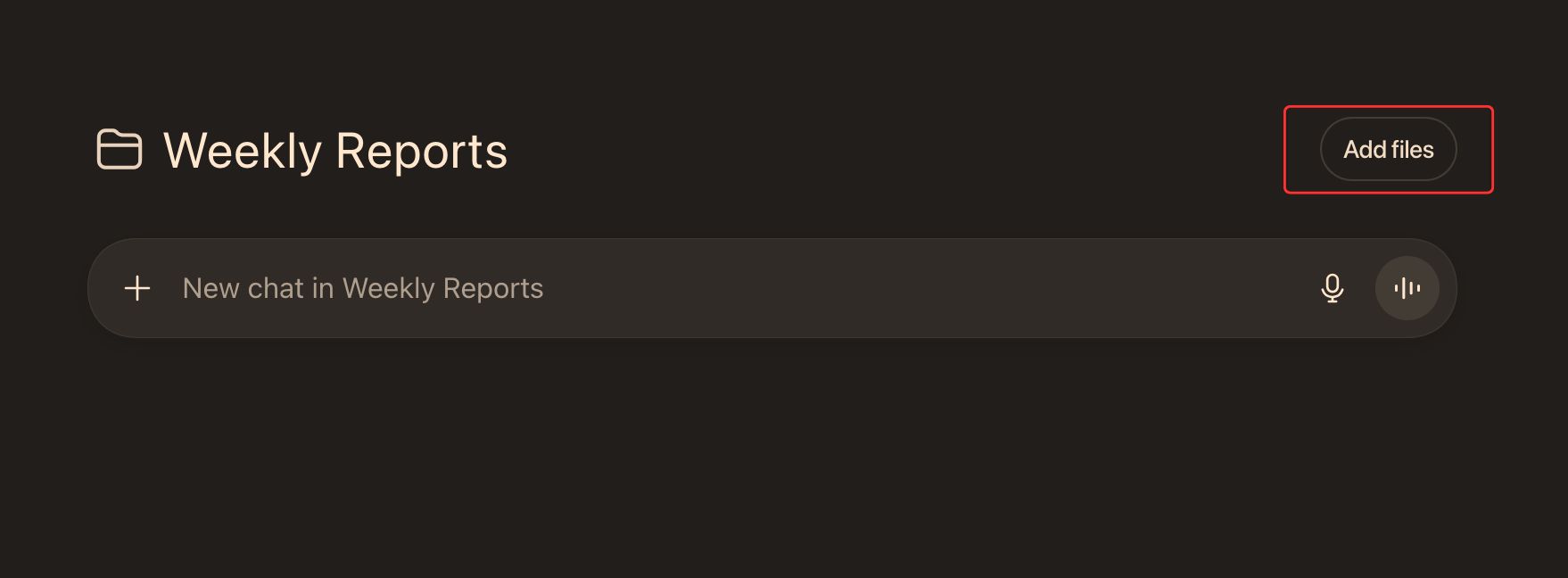
Step 2: Click “Add files” and upload any information you’d like ChatGPT to have access to. We’ll cover what information you should upload later in this email.
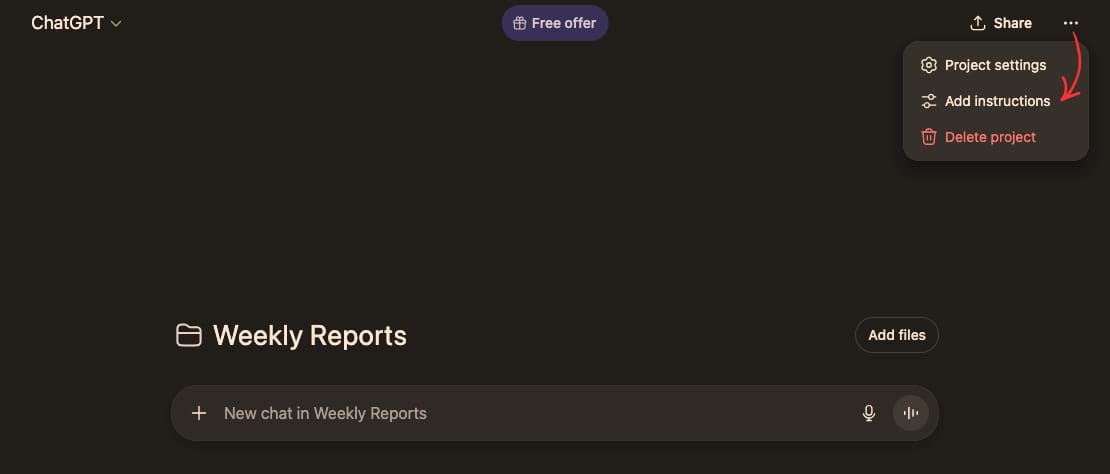
Step 3: Click the three dots in the top right corner of your screen and click “Add instructions”. Here we’ll upload text that tells ChatGPT how we’d like it to behave when prompted.
That's the mechanics. But the real power comes from what you put in those files and instructions.
Project Files: give AI your context
Project Files give AI the knowledge it needs to produce high-quality, personalized outputs.
Here are some ideas of what you can upload to your project:
Your company profile - your organization's market, competitors, products, target persona and current priorities
Your role - your job title, responsibilities, goals, and preferences
Examples of excellent work - past deliverables that represent your quality standard
Frameworks or SOPs - any processes you follow regularly
Meeting notes or transcripts - context from key conversations or decisions
Style guides - formatting and tone preferences
If you don't have these files ready, the fastest way to create them is by getting ChatGPT to interview you, using our interview method:
Open a new chat in ChatGPT and use this prompt:
"Create a master context document about my role at my company. Interview me one question at a time. Ask about my job title, responsibilities, goals, how my manager expects work formatted, and my preferences. Wait for my answer before asking the next question."
ChatGPT will ask you a series of questions.
You can either type them out or use a voice-to-text platform (we like Wispr Flow) to simply answer the questions out loud. Once you're done, ask ChatGPT to format everything into a clean document you can download and upload to your project.
Do the same for your company profile or any other context you want to capture. Takes a few minutes per document, but you only do it once.
Project Instructions: tell AI how to behave
We just covered project files, which give AI knowledge. Now let’s cover project instructions, which tell AI how to act on that knowledge.
Project Instructions are especially useful when you want AI to follow a clear process instead of improvising and giving you common, bland results.
You can instruct AI to follow any process you’d like, but here are a couple popular examples to act as a starting point:
Give it a process to follow. Instead of letting AI freestyle, tell it exactly how you want it to work.
Example: "When I ask you to write something, first ask clarifying questions. Then show me an outline before drafting. Only move to the next section after I approve."Prevent hallucinations. Don’t let AI make things up.
Example: "If you don't have the answer in your knowledge files, don't make anything up, just tell me you don't have access to that information and ask me if I have it."Set formatting preferences. If you always want bullet points, specific headers, or a certain tone, put it here so you never have to repeat yourself.
Example: "Always use clear headers and short paragraphs. Write in a confident but conversational tone. When presenting options, use bullet points. Avoid jargon unless I specifically ask for technical language."
That’s it! You now have the system to set up projects you can use again and again to deliver high-quality results.
If you only do one thing today: create a single project and upload one context file (for example, your role or a past example of work you’re proud of).
That alone will noticeably improve your results.
Tomorrow, we'll show you how to use ChatGPT and Gamma to create professional presentations in a fraction of the time.
See you tomorrow,
Rowan & The Rundown team