- The Rundown University
- Pages
- ⚡ Day 3: Create presentations in minutes with AI

bb

Hey everyone,
Welcome to Day 3 of our 5-day Introduction to AI email course!
Yesterday, we covered Custom Projects — AI workspaces that store your context so you never have to re-explain yourself again. Today we're putting AI to work on something practical.
Few things drain energy like staring at a blank PowerPoint deck.
You know what you want to say, but somehow two hours disappear just getting the slides to look decent. Then someone asks you to "make a few tweaks" and there goes your afternoon.
Today we're sharing the exact workflow we use to create presentations in 15-30 minutes for something that used to take half a day.
The approach uses ChatGPT for thinking and content creation, and a tool called Gamma for design and formatting. You can use this for internal team presentations, client decks, sales pitches, workshops — really any slide-based content.
Step 1: Gather your materials
Before opening ChatGPT, take a few minutes to pull together any relevant materials you already have.
This could include:
Notes or bullet points on what you want to cover
Existing documents related to the topic (reports, briefs, research)
Data or metrics you want to include
Examples of presentations you like
The goal is to give ChatGPT the information it needs to create content that matches what's in your head.
If you don't have any documents, that's fine too. The prompt in the next step will have ChatGPT interview you to extract what it needs.
Step 2: Use this prompt in ChatGPT

Paste the prompt below into ChatGPT, fill in the placeholders, and attach your documents to the chat box before hitting enter.
"Help me create the text for a presentation about (INSERT USE CASE). It should be about (X) slides long.
The final output should be text that I can paste into Gamma.app to create the presentation.
Separate each slide with "---" so that Gamma knows where each slide is separated.
The main points I would like to cover are: (INSERT MAIN POINTS)
I have attached documents to give you additional information and context.
Interview me to get all the information you need to make the text for this presentation."
This prompt forces ChatGPT to structure content slide-by-slide, ensures Gamma can read the output, and makes ChatGPT interview you so the content actually matches what you're going for.
Step 3: Answer ChatGPT's questions
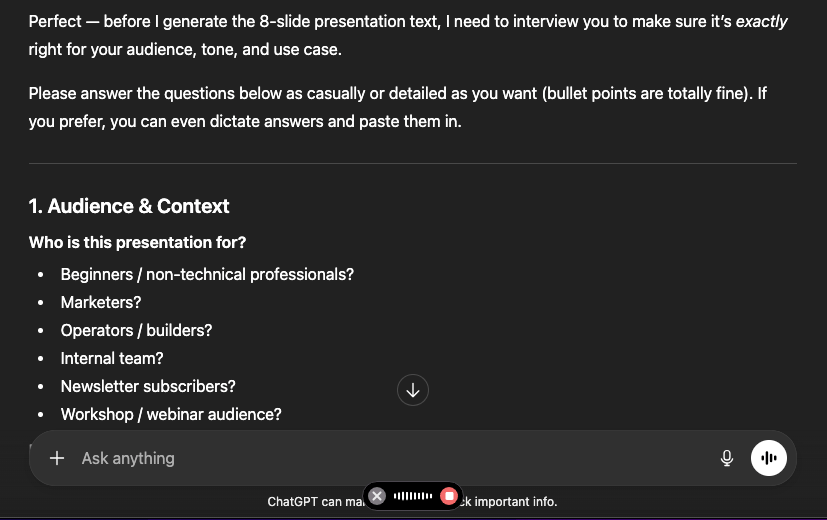
ChatGPT will ask you clarifying questions about your presentation.
If you have a voice-to-text tool like Wispr Flow (which we mentioned in Day 2), this is a great place to use it. Speaking your answers is faster than typing, and your explanations tend to come out more natural, which gives ChatGPT a richer context to work with.
Step 4: Copy the output to Gamma

Once ChatGPT finishes generating your presentation text, select all of it and copy to your clipboard. Make sure the slides are separated with "---" lines.
Head to Gamma.app (the free plan has everything you need for this), click "Create New," select "Paste in text," paste what you copied, select "Preserve this exact text," and continue to the prompt editor.
Step 5: Customize and generate
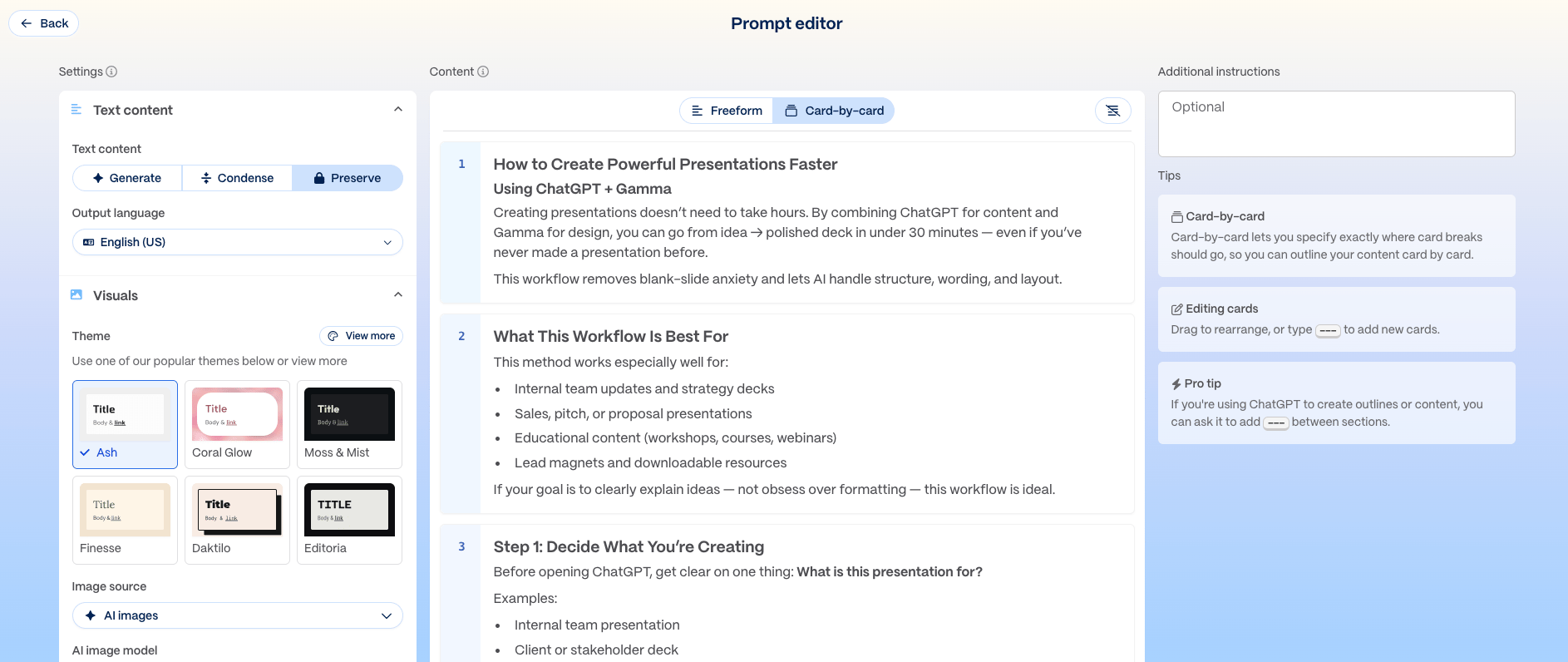
Before generating, you'll want to customize a few things.
On the left side of the screen, you'll see a list of premade themes. Browse through and pick one that matches your brand or style.
Below the themes, you'll see an images section. Here you can choose whether you want AI-generated images, stock photos, or no images at all for a clean text-only deck. Select your preference.
In the center of the screen, you'll see your slide structure. If anything looks off, you can drag, drop, and adjust here.
Once everything looks good, click “Generate” and wait a few seconds for Gamma to build your presentation.
Step 6: Edit and share
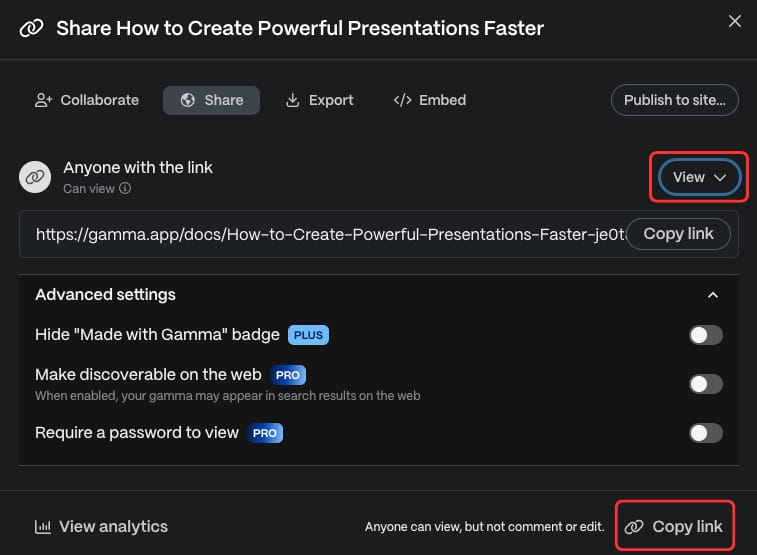
You now have a first draft ready for review. You can click any block to edit text directly, use the toolbar to tweak layout or formatting, or click "Edit with AI" on any card and describe what you want changed.
When you're ready to share, you can send it as a website link (most popular — recipients get an uneditable version), export as a PDF for email attachments, or download as PowerPoint if you need traditional slide software.
That's the whole workflow.
Once you've done this a few times, creating presentations becomes a 15-30 minute task instead of a multi-hour project.
Tomorrow, Rowan (founder of The Rundown) is going to pull back the curtain and show you exactly how he uses AI to run an 8-figure AI-first media company — every tool, every workflow, no theory.
See you tomorrow,
Rowan & The Rundown team